
Connect Using Schoology
Connect Using Schoology
Do you use Schoology?
You and your students can launch your magazine website from your Schoology course.
To get started, follow the instructions below, or share with your school's technical administrator.
(Click for information on integrating with Google Classroom or another LMS.)
Step 1. Register your account.
Step 1. Register your account.
Go to platform.scholastic.com and sign in using your Scholastic account. If you don't have an account, follow the on-screen instructions to register, enter the access code from your Teacher's Guide, and retrieve your classroom password.
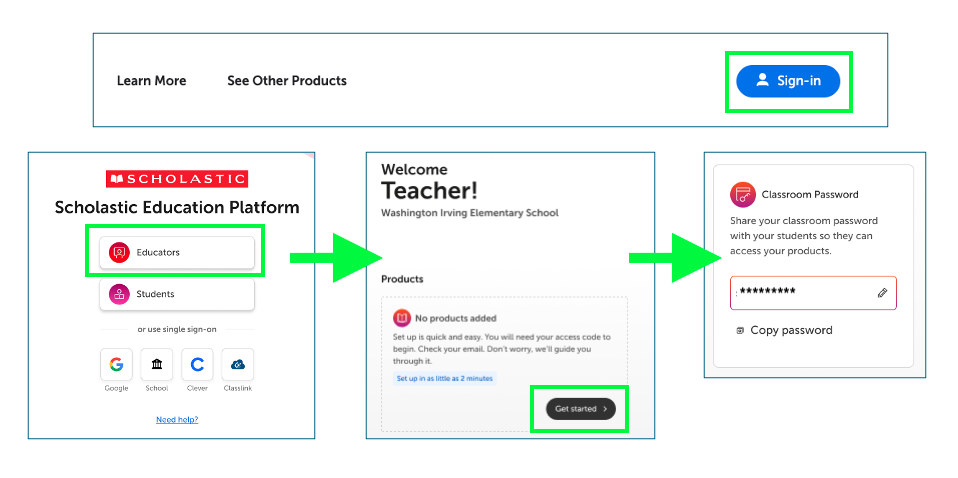
Step 2. Add a link to Schoology
Step 2. Add a link to Schoology
1. In your Schoology course, select "Add Materials" and choose "Add File/Link/External Tool" from the list.
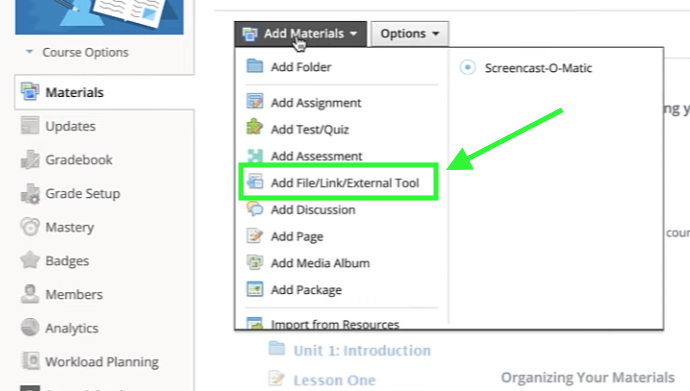
2. Select "Link" and input a link to your magazine site's homepage. (You can even link directly to a specific article, if you'd prefer!)
For more information on adding an external URL to Schoology, click here.
You're all set!
You're all set!
Students will now be able to log in using their shared classroom password when launching their Scholastic magazine from within Schoology.
Questions?
Questions?
We can help! Click here for support.
(Click for information on integrating with Google or using another LMS.)